
Steps 1 and 2 can be ignored if you have never connected to eduroam on this Mac before.
Remove old certificate (if necessary)
Click on the Apple logo at the top left of your screen -> System Settings -> General -> Device Management
Remove old certificate (continued)
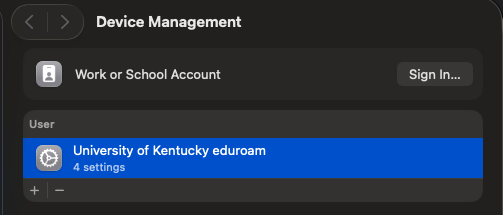
Look for the eduroam certificate (image below), and click on the minus (-) button to remove it. If prompted for authentication, enter your Mac password. After this is complete, restart your Mac.
Open Wi-Fi Settings
Click the Wi-Fi icon in the Menu bar -> select "eduroam" from the list of Wi-Fi networks. If it does not come up after a few seconds and you have tried closing and reopening the list of networks, restart your Mac.

Manually connect to eduroam
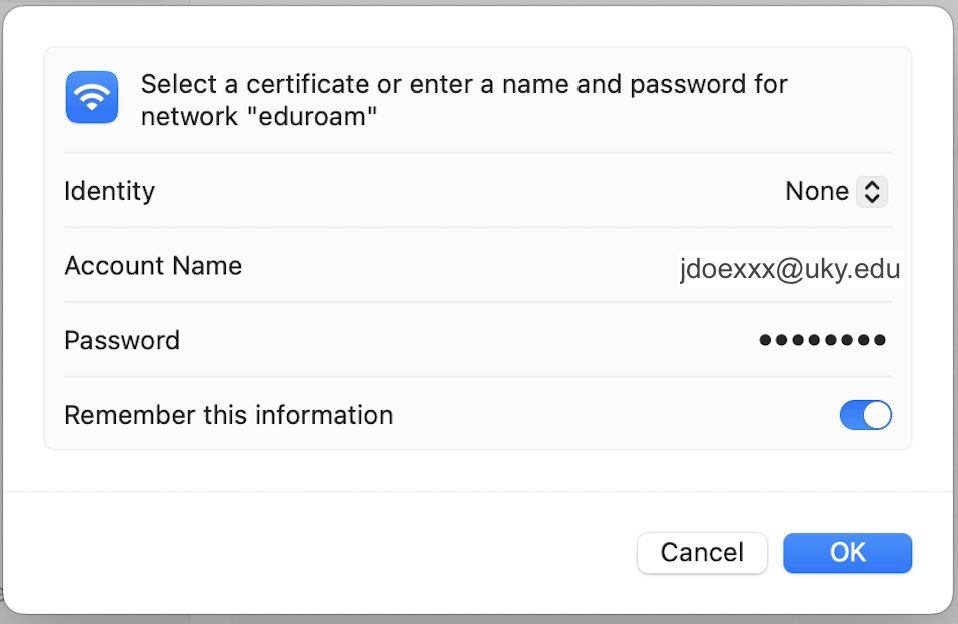
Select eduroam -> enter your linkblue username (include @uky.edu) and password. Ensure to check "Remember this information" in the box.
Trust the Certificate
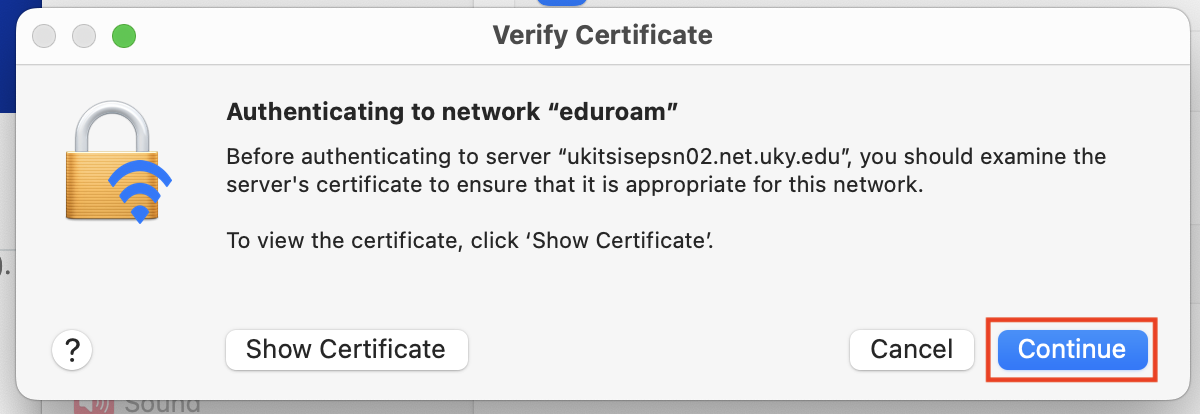
If you are prompted with a verification screen, click continue and enter your Mac password if it asks for authentication.
You should now be connected
After a few seconds or longer depending on the system, eduroam should show as connected now.
Common Troubleshooting Issues
- Confirm that you are on the right timezone and your clock is set correctly. Incorrect times will cause eduroam authentication to fail.
- The authenticator will not properly tell you if your password is incorrect, so triple check passwords for typos.
- Do not use any certificate for connections, this method is considered outdated, and manual connection is preferred via the tutorial above.
- You can connect to UK-Devices as an alternative network to eduroam, which provides the same connection access, see this site for instructions: https://its.uky.edu/wifihelp/uk-devices