
Step 2 can be skipped if you have not connected to eduroam on this Windows device before.
Click on Wi-Fi icon

Remove prior eduroam connection (if necessary)
If you have connected to eduroam before on this device, right-click on eduroam in the list of Wi-Fi networks and select "Forget". Restart your computer.
If you do not see eduroam in the list, try closing and reopening your list of Wi-Fi connections, and restarting your computer.
Connect to eduroam
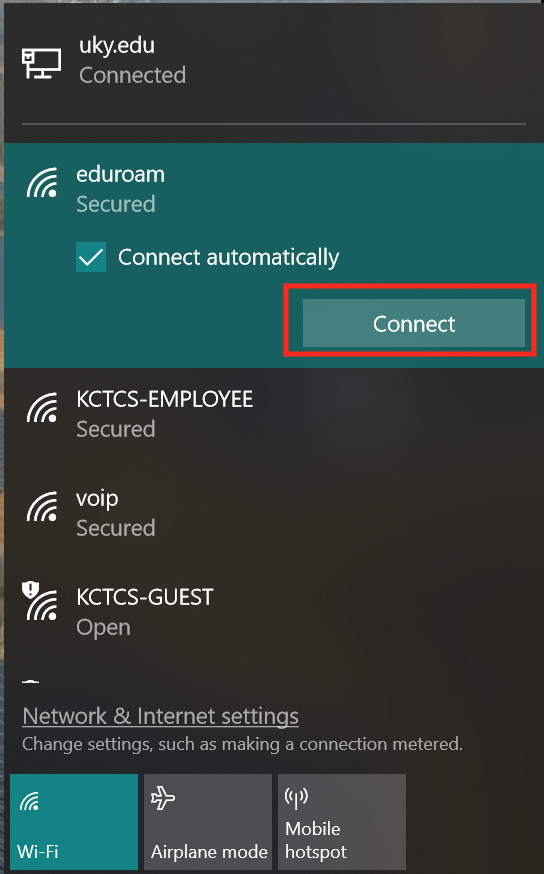
In the list of wireless networks, select eduroam and click "Connect". If it prompts to continue connecting, click "Connect" again.
Authenticate to eduroam
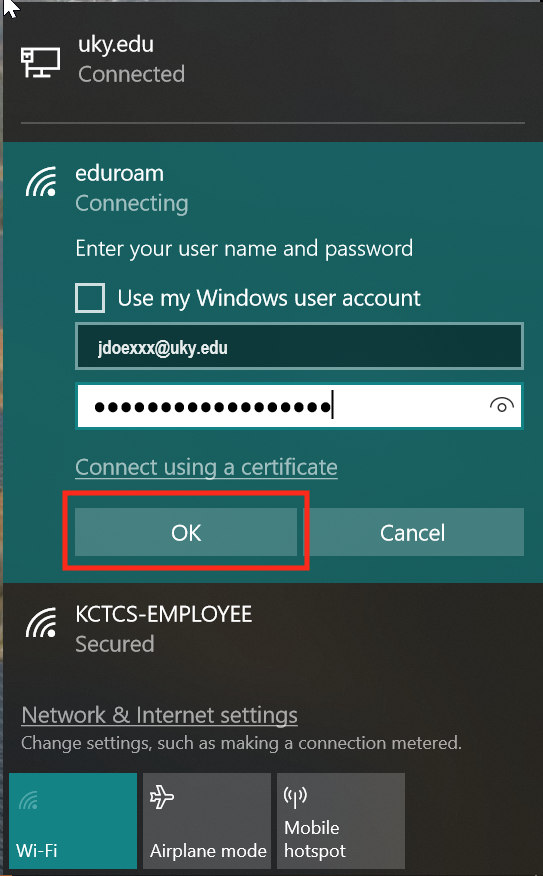
When prompted for authentication, do not select "Use my Windows user account". Instead, connect using your linkblue credentials (include @uky.edu for the username) and then click "OK.
You should now be connected
After a few seconds to a minute of your computer authenticating to the network, you should now be connected to eduroam.
Common Troubleshooting Issues
- Confirm that you are on the right timezone and your clock is set correctly. Incorrect times will cause eduroam authentication to fail.
- Do not use any certificate for connections, this method is considered outdated, and manual connection is preferred via the tutorial above.
- You can connect to UK-Devices as an alternative network to eduroam, which provides the same connection access, see this site for instructions: https://its.uky.edu/wifihelp/uk-devices